What Internet Speed Do You Need for IPTV in 2026? Complete Guide
When planning a home entertainment setup in 2026, determining your bandwidth needs is a critical first step. Finding the right internet speed for IPTV differs fundamentally from sizing a connection for on-demand platforms like Netflix, Disney+, or Prime Video.
On-demand services aggressively buffer content minutes in advance into local device memory. If your connection suffers a brief dropout, playback continues smoothly from the pre-loaded cache. Live Internet Protocol Television, by contrast, delivers continuous, low-latency video feeds in real time. Packets must arrive chronologically and uninterrupted. If delivery stalls for even a second, playback freezes.
Whether streaming 60 FPS sports or international news across multiple screens, required bandwidth depends on video resolution, encoding bitrate, household concurrency, and connection stability. In this 2026 guide, we explore practical speed benchmarks for SD, HD, Full HD, and 4K, examine why stability matters more than raw megabits, and explain how platforms like the BexyTV platform deliver buffer-free viewing using optimized protocols (learn more about how modern IPTV streaming works).
How Much Internet Speed Do You Need for IPTV?
To calculate how much internet speed for IPTV streaming your home requires, distinguish between the dedicated bandwidth consumed by a single stream and the total bandwidth needed by your household. A single video feed requires a specific transfer rate in Megabits per second (Mbps), while your household connection is shared among phones, laptops, smart TVs, and background cloud services.
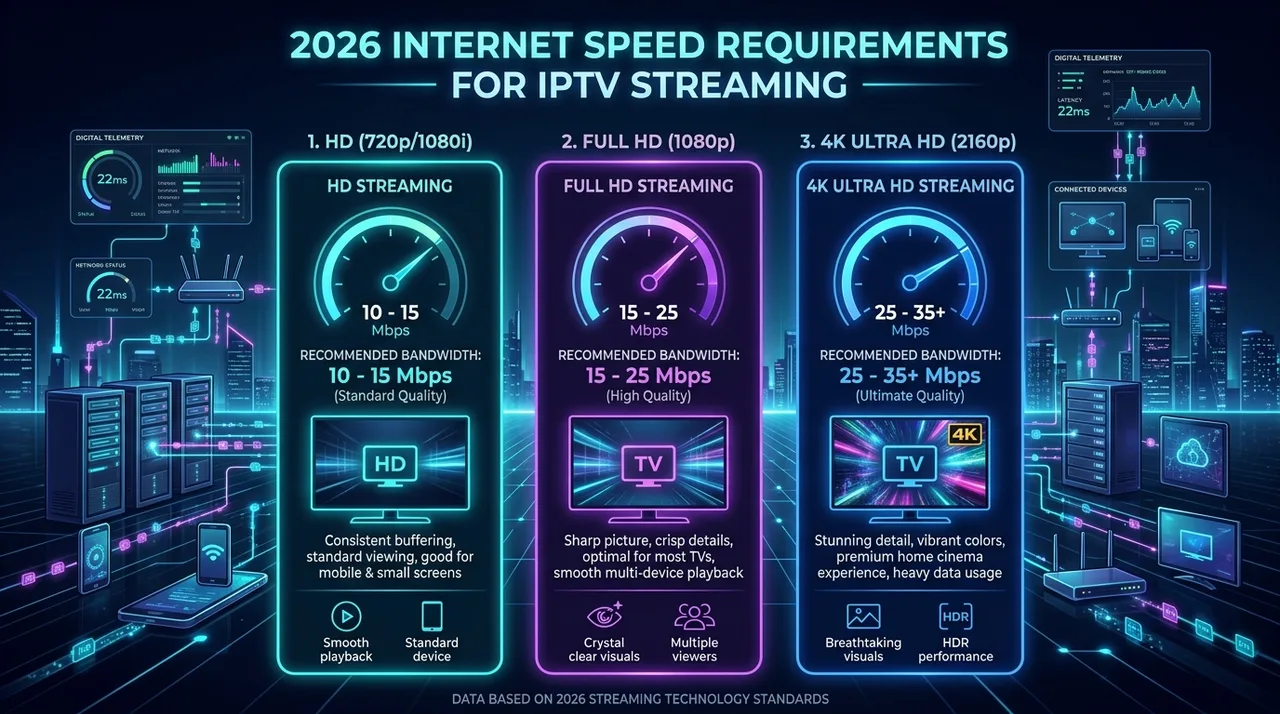
As a practical baseline in 2026, standard definition requires around 5 to 8 Mbps, 720p HD needs around 10 to 15 Mbps, 1080p Full HD at 60 FPS demands around 15 to 25 Mbps, and 4K Ultra HD broadcasts require around 25 to 35+ Mbps of dedicated throughput.
The comparison table below outlines realistic speed recommendations across common streaming tiers using modern HEVC (H.265) and AVC (H.264) compression:
| Streaming Quality | Recommended Dedicated Speed | Practical Household Broadband Plan | Typical Household Use Case |
|---|---|---|---|
| Standard Definition (SD) | around 5–8 Mbps | 25–30 Mbps plan | Mobile screens, older tablets, legacy connections |
| High Definition (HD) | around 10–15 Mbps | 40–50 Mbps plan | Secondary bedroom TVs, office displays, news channels |
| Full HD (FHD) | around 15–25 Mbps | 50–100 Mbps plan | Main living room TVs, fast-action live sports, movies |
| 4K Ultra HD (UHD) | around 25–35+ Mbps | 100–200+ Mbps plan | Premium 4K OLED/QLED displays, home cinema setups |
| Multiple Devices | 50–100+ Mbps dedicated | 200–500+ Mbps fiber | Family homes, simultaneous viewing in separate rooms |
Important Note: These speed recommendations represent practical guidelines rather than absolute technical guarantees. Real-world performance varies depending on stream encoding bitrate, network latency, transit hops, and local wireless interference.
What Internet Speed Is Best for IPTV in 2026?
While minimum speed allows a stream to initialize, the best internet speed for IPTV provides comfortable bandwidth headroom. Headroom is the extra buffer of unused internet capacity that absorbs sudden spikes in household data consumption without starving your live video player.
In modern homes, background processes constantly consume bandwidth:
- Mobile devices automatically sync photos and videos to cloud storage.
- Smart home security cameras continuously upload high-definition video feeds.
- Game consoles quietly download multi-gigabyte background updates.
- Work laptops sync remote drives and run communication apps.
If your household subscribes to a 30 Mbps plan and you watch a 20 Mbps Full HD sports broadcast, only 10 Mbps of spare capacity remains. The instant another person opens a high-definition video or starts a video call, available bandwidth drops below the stream threshold, causing immediate buffering.
Aim for a broadband tier providing double to triple the dedicated speed of your primary stream. A 50 to 100 Mbps connection offers an ideal comfort zone for a single Full HD stream. Households streaming in 4K or running multiple screens should opt for 200 to 300+ Mbps. Check our complete BexyTV pricing plans to review multi-connection subscriptions suited to your broadband capacity.
IPTV Speed Requirements by Video Quality
Streaming bandwidth scales significantly with video resolution, frame rate, and color depth. Understanding these differences helps you diagnose bottlenecks and select the appropriate stream profile.
How Much Speed Does HD IPTV Need?
Standard High Definition (HD) covers 720p progressive video and 1080i interlaced broadcasts. Encoded in H.264, these streams typically have bitrates between 4 and 8 Mbps. A dedicated speed of around 10 to 15 Mbps provides a reliable starting point for HD streaming, absorbing minor network fluctuations without dropping frames. HD streams are forgiving on older streaming sticks and mobile devices, making them ideal when streaming over hotel Wi-Fi, cellular hotspots, or secondary screens.
How Much Speed Does Full HD IPTV Need?
Full High Definition (1080p) is the standard for modern live television broadcasts. However, bitrates vary considerably between standard 30 FPS content and high-motion 60 FPS broadcasts. Live sports delivered at 60 FPS require twice as many image frames per second, ensuring fast-moving action remains clear without motion blur. High-quality 1080p 60 FPS feeds run at bitrates between 10 and 18 Mbps, requiring around 15 to 25 Mbps of dedicated bandwidth. For detailed setup recommendations for high-framerate action, see our sports IPTV streaming guide.
How Much Speed Does 4K IPTV Need?
True 4K Ultra HD (3840x2160) video contains over 8.2 million pixels per frame—four times the resolution of 1080p. Combined with 10-bit HDR color and 60 FPS motion, data throughput requirements increase dramatically. Even with efficient HEVC (H.265) compression, live 4K broadcasts require continuous bitrates of 20 to 30 Mbps. To stream 4K IPTV without micro-stuttering, your hardware needs around 25 to 35+ Mbps dedicated exclusively to that stream.
Beyond bandwidth, 4K streaming demands capable hardware decoders, ample device RAM, and stable network interface cards. A high advertised broadband speed alone does not guarantee flawless 4K playback if wireless interference or packet loss disrupts the stream.
How Much Internet Speed Do You Need for Multiple IPTV Devices?
Bandwidth requirements compound when multiple family members stream different channels concurrently in separate rooms. Because each stream operates independently, total network demand increases in direct proportion to the number of active screens.
Consider these realistic household examples:
- Single Viewer: One 1080p Full HD stream uses ~15–20 Mbps. A basic 40–50 Mbps broadband connection easily covers this with headroom for casual browsing.
- Two Simultaneous Streams: Two Full HD streams draw ~35–45 Mbps combined. A household plan of at least 100 Mbps prevents one viewer's channel change from causing buffering on the other screen.
- Three Streams (1x 4K + 2x Full HD): One 4K stream (30 Mbps) plus two Full HD streams (40 Mbps) demands ~70 Mbps of dedicated throughput. Factoring in gaming, video calls, and smart devices, a 200 to 300+ Mbps connection is ideal.
The table below outlines cumulative bandwidth requirements across multiple devices:
| Active Streams | Stream Resolution Mix | Dedicated IPTV Bandwidth | Recommended Household Plan |
|---|---|---|---|
| 1 Device | 1x Full HD (1080p) | 15–25 Mbps | 50–75 Mbps broadband |
| 2 Devices | 2x Full HD (1080p) | 30–50 Mbps | 100–150 Mbps broadband |
| 2 Devices | 1x 4K UHD + 1x Full HD | 45–65 Mbps | 150–200 Mbps broadband |
| 3 Devices | 1x 4K UHD + 2x Full HD | 60–85 Mbps | 200–300 Mbps broadband |
| 4+ Devices | 2x 4K UHD + 2x Full HD | 90–130+ Mbps | 300–500+ Mbps fiber |
When setting up multi-screen streaming, verify that your IPTV subscription package permits simultaneous active connections. Review our BexyTV supported devices and plan options to configure an authorized multi-room setup.
Internet Speed vs Internet Stability: What Matters More?
One of the most widespread myths in digital streaming is that a high advertised download speed (such as 500 Mbps or 1 Gbps) guarantees buffer-free playback. In reality, network stability matters far more than raw speed.
A stable, low-latency 35 Mbps connection will stream live 4K IPTV flawlessly, while an unstable 500 Mbps connection plagued by jitter and packet loss will buffer constantly. Four technical parameters dictate streaming performance:
- 1. Sustained Download Speed: Speed tests record peak burst speed over 10 seconds. IPTV requires steady, unbroken throughput over hours of viewing. If your connection periodically drops from 300 Mbps down to 3 Mbps for two seconds, the player buffer empties and the screen freezes.
- 2. Latency (Ping): Latency is the round-trip time required for a data packet to travel from your player to the IPTV server and back. Lower latency ensures fast channel zapping and immediate stream initialization. Optimal ping for IPTV is below 50 ms.
- 3. Jitter: Jitter measures the variation in packet arrival times. If consecutive packets arrive at wildly differing intervals, the player struggles to assemble smooth video frames. Jitter should remain under 10 ms.
- 4. Packet Loss: When data packets are lost due to Wi-Fi interference or ISP routing bottlenecks, the player must request retransmission or drop frames. Even 1% to 2% packet loss can cause visual macroblocking, audio desync, and buffering loops.
To understand how global routing and content caching mitigate packet loss at the server level, read our guide on IPTV server infrastructure and network architecture.
Wi-Fi vs Ethernet for IPTV
The physical connection between your streaming hardware and your home router plays a critical role in playback reliability. While Wi-Fi provides mobility, wired Ethernet remains the premier choice for high-bitrate live video.
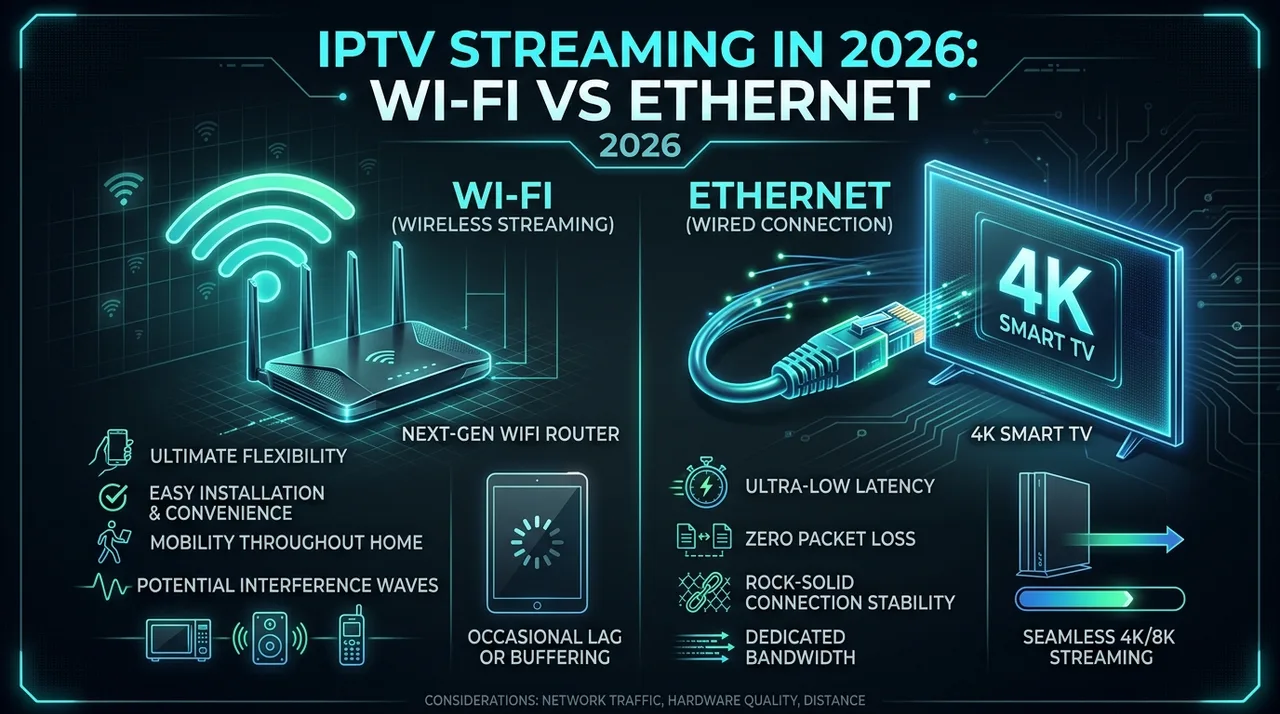 Side-by-side comparison between Wi-Fi and Ethernet for IPTV streaming in 2026
Wi-Fi: Convenience with Environmental Sensitivity
Wireless signals travel through the air over radio frequencies (2.4 GHz, 5 GHz, and 6 GHz), making them vulnerable to environmental factors:
- Physical Obstacles: Solid masonry, brick walls, and metal appliances weaken wireless signals and introduce packet loss.
- Radio Interference: Microwaves, baby monitors, Bluetooth devices, and neighbors' routers create signal noise on shared frequencies.
- Frequency Bands: The 2.4 GHz band penetrates walls effectively but offers lower real-world bandwidth (often under 30 Mbps) and heavy congestion. The 5 GHz band delivers speeds of 200–500+ Mbps with lower latency, but has a shorter physical range.
Ethernet: Uncompromising Consistency
A physical Cat 5e or Cat 6 Ethernet cable provides a shielded, direct connection between router and device:
- Zero Wireless Interference: Ethernet cables are immune to household electromagnetic noise.
- Flat Latency and Jitter: Wired connections eliminate transmission delays inherent to wireless links.
- Continuous Throughput: Ethernet delivers 100% of its rated speed continuously over hours of playback.
Practical Advice: Ethernet is not necessarily "faster" in theoretical maximum speed than Wi-Fi 6, but it provides uninterrupted consistency. Whenever practical, connect primary living room televisions and media boxes via Ethernet.
Premium BexyTV 4K Streaming — Save 61% Today
Unlock 50,000+ channels, 150,000+ VODs, and 60 FPS Anti-Freeze technology. Get our 12-Month Plan for just $69.99.
- Premium Anti-Freeze v2
- Instant WhatsApp Activation
How to Test Your Internet Speed for IPTV
Testing your internet speed on a phone in the kitchen will not reflect the connection quality on your living room television. Follow this step-by-step diagnostic process to evaluate your streaming connection accurately.
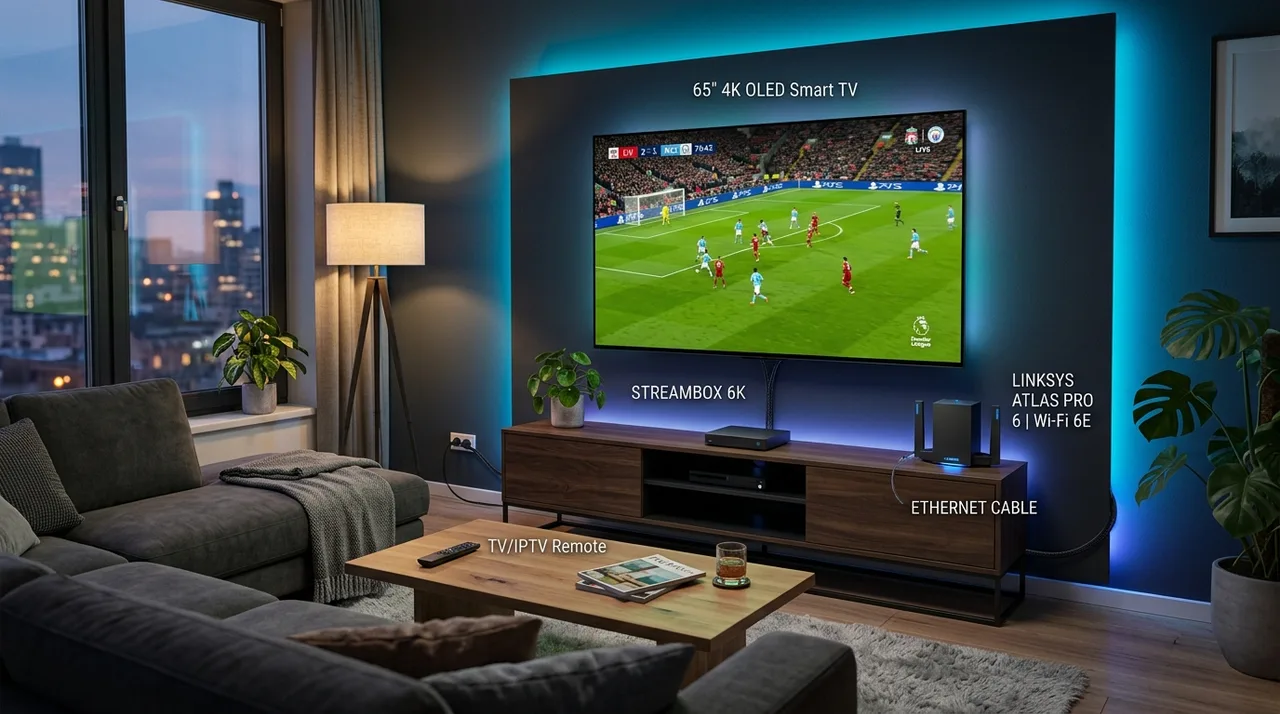 Realistic home IPTV streaming setup with 4K Smart TV, media player, and network router
- Step 1: Pause Competing Household Downloads: Temporarily pause active downloads, cloud backups, and console updates on other devices to isolate your baseline connection.
- Step 2: Test on the Streaming Device Itself: Run the speed test directly on your Smart TV, Firestick, Apple TV, or Android TV box using apps like Analiti or Speedtest by Ookla.
- Step 3: Record All Critical Metrics: Ensure download speed exceeds 15 Mbps for Full HD or 35 Mbps for 4K. Verify upload speed (5 to 10 Mbps minimum), latency (under 50 ms), and jitter (under 10 ms).
- Step 4: Test at Varying Times of Day: Test during afternoon and peak evening hours (8:00 PM to 11:00 PM) to check for ISP neighborhood throttling.
- Step 5: Compare Wi-Fi Against Ethernet: If supported, test on Wi-Fi, then plug in an Ethernet cable to immediately determine if wireless interference is throttling your stream.
Why Does IPTV Buffer Even With Fast Internet?
Experiencing stream stuttering on a fast 300 Mbps or 1 Gbps broadband connection is frustrating. When this happens, users frequently assume their IPTV provider is at fault. While server congestion can occur, fast-internet buffering is usually triggered by bottlenecks elsewhere along the digital transmission path.
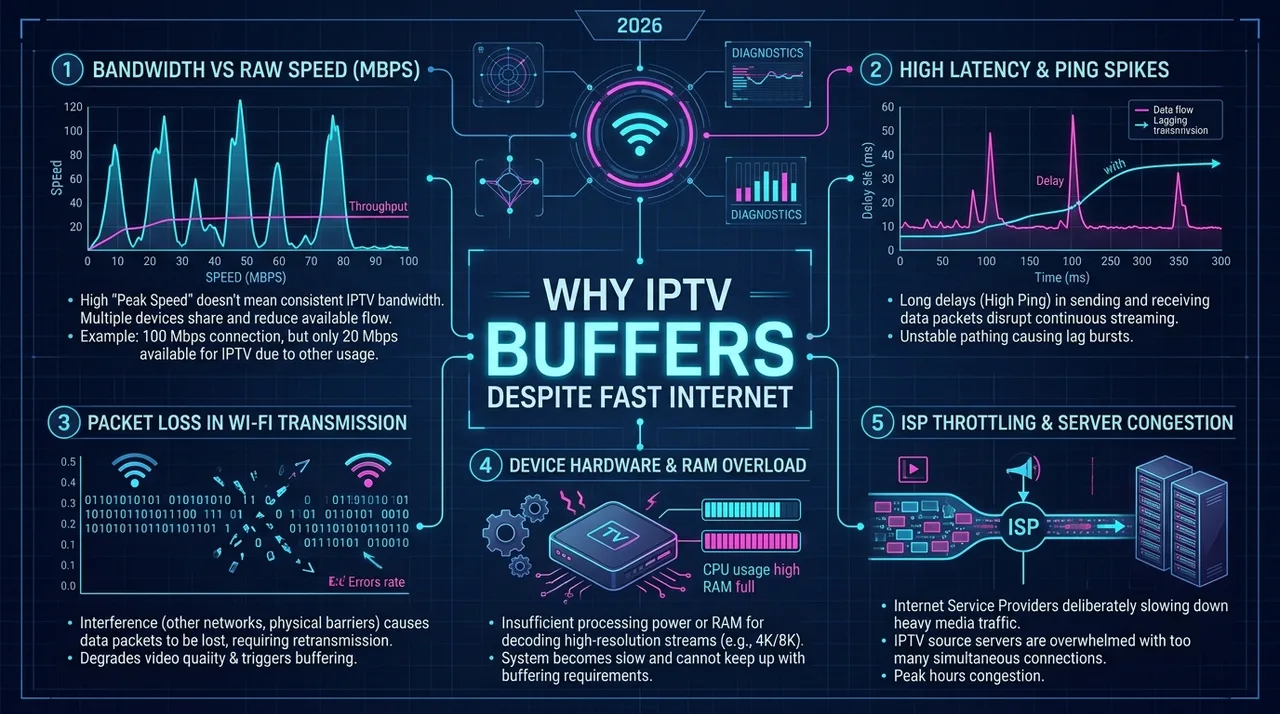 Technical infographic explaining why IPTV buffers despite fast internet speed including latency, packet loss, and device bottlenecks
To troubleshoot effectively, distinguish between five distinct problem areas:
- Internet Speed Problem: Bandwidth is saturated by concurrent household usage.
- Network Stability Problem: High jitter, packet loss, or ISP routing node congestion causes delays.
- Device Hardware Bottleneck: The streaming stick processor is overheating or RAM is exhausted.
- IPTV Player Software Issue: App cache is corrupted or buffer allocation is too low.
- Stream or Server Overload: The provider's origin feed experiences high traffic during major events.
Use this troubleshooting table to identify and resolve specific symptoms:
| Streaming Symptom | Underlying Cause | Category | Verification Method | Recommended Solution |
|---|---|---|---|---|
| Stream pauses every 10–20 seconds with spinner | Bandwidth saturation or peak-hour ISP throttling | Internet / ISP | Run speed test on device during freeze; check ping | Switch to 5 GHz or Ethernet; test temporarily via mobile hotspot |
| Video stutters while audio remains smooth | Streaming stick CPU/GPU overwhelmed by high-bitrate decoding | Device Hardware | Switch to 720p HD channel; does stuttering stop? | Clear background apps; switch decoder from Hardware to Software |
| Pixelated macroblocking boxes and audio chirps | Wireless packet loss or channel interference | Network Stability | Ping router IP address; check dropped packet percentage | Move router closer; change Wi-Fi channel; connect wired Ethernet |
| Buffering on TV but plays smoothly on smartphone | TV internal Wi-Fi antenna or low available flash memory | Device / App | Play identical channel on phone connected to same Wi-Fi | Free up device storage (>1.5 GB); clear app cache; use HDMI extender |
| All channels across all categories freeze at once | Host server maintenance or upstream feed disruption | Service / Stream | Check provider status or test channels from other regions | Wait for server restoration or verify alternate stream links |
How to Improve IPTV Streaming Without Upgrading Your Internet Plan
Upgrading to a more expensive broadband tier is rarely necessary if your connection already delivers 50 Mbps or higher. In most instances, optimizing your local network and player software completely resolves buffering.
Apply these practical optimizations:
- Connect to 5 GHz Wi-Fi: Switch your streaming device from 2.4 GHz to 5 GHz to avoid appliance interference and gain wider bandwidth.
- Use a Wired Ethernet Cable: Connect an Ethernet cable directly from router to device, or use powerline adapters.
- Elevate and Reposition Your Router: Place your router on an open shelf away from metal appliances, thick walls, and enclosed cabinets.
- Power-Cycle Your Router Weekly: A quick 30-second restart clears routing caches and refreshes network connections.
- Restart Your Streaming Device: Rebooting flushes working memory and closes dormant background apps on streaming sticks.
- Clear the IPTV Player Cache: In Application Settings, select your IPTV player and click "Clear Cache" to remove stale transport files.
- Increase Playback Buffer Size: In player settings (such as TiviMate or IPTV Smarters Pro), increase buffer allocation to 3–5 seconds.
- Switch Video Decoders: Toggle between Hardware (HW), Hardware+ (HW+), and Software (SW) decoders to match your hardware chipset.
- Pause Cloud Backups: Ensure household PCs are not syncing cloud drives (OneDrive, Google Drive) during live broadcasts.
- Use an HDMI Extender: Moves streaming sticks away from the television's metal chassis, improving Wi-Fi reception.
- Keep Player and OS Updated: Install current firmware and app versions to eliminate software bugs and memory leaks.
- Follow Proper Setup Guides: Verify connection settings against our detailed BexyTV IPTV setup guide for step-by-step device optimization.
Internet Speed for IPTV on Different Devices
While bandwidth requirements are determined by video resolution rather than device brand, different platforms feature distinct hardware decoders, wireless chipsets, and operating system overhead.
IPTV on Smart TV
Smart TVs running Samsung Tizen, LG webOS, or Google TV feature large displays and convenient remotes. However, many models include budget network chipsets, and physical Ethernet ports are frequently capped at 100 Mbps. While 100 Mbps is more than adequate for IPTV, internal TV Wi-Fi antennas sit near internal power supplies, increasing susceptibility to interference. For best results, use 5 GHz Wi-Fi or Ethernet and close unused background TV apps.
IPTV on Firestick
Amazon Fire TV Stick devices (especially the 4K and 4K Max models) are widely used due to affordability and solid Android foundations. Because the stick plugs directly behind the TV, wireless reception can suffer. Always use the HDMI extender and power the stick from a wall adapter rather than a low-power TV USB port. An optional micro-USB/USB-C Ethernet adapter provides wired reliability if Wi-Fi fluctuates.
IPTV on Android TV
Dedicated Android TV and Google TV boxes (like the Nvidia Shield TV Pro, Xiaomi TV Box S, and Chromecast with Google TV) offer faster processors and larger RAM than entry-level sticks. The Nvidia Shield TV Pro features a Gigabit Ethernet port and AI upscaling, making it an exceptional option for high-framerate live sports.
IPTV on Apple TV
The Apple TV 4K delivers top-tier performance with Apple's A-series processors, Gigabit Ethernet, and Wi-Fi 6. It processes high-bitrate 4K HEVC streams effortlessly, providing fluid UI navigation and rapid channel switching with compatible tvOS players.
IPTV on Mobile Devices
Streaming IPTV on iOS and Android smartphones and tablets allows viewing on the go. However, high-definition streams consume substantial cellular data. Connect to reliable Wi-Fi when streaming for extended periods, or monitor mobile data allowances when using 4G/5G networks.
How Much Data Does IPTV Use?
For households with broadband plans that enforce monthly data caps (often 1.2 Terabytes per month), understanding IPTV data consumption is essential.
Because IPTV streams live video continuously, data consumption is calculated by multiplying stream bitrate by viewing time:
| Stream Quality Tier | Average Bitrate | Data Used Per Hour | 4 Hours Daily (30 Days) | 8 Hours Daily (30 Days) |
|---|---|---|---|---|
| Standard Definition (480p) | ~2.5–4 Mbps | ~1.1 – 1.8 GB / hr | ~135 – 215 GB / mo | ~270 – 430 GB / mo |
| High Definition (720p) | ~5–8 Mbps | ~2.25 – 3.6 GB / hr | ~270 – 430 GB / mo | ~540 – 860 GB / mo |
| Full HD (1080p @ 60 FPS) | ~10–18 Mbps | ~4.5 – 8.1 GB / hr | ~540 – 970 GB / mo | ~1,080 – 1,940 GB / mo |
| 4K Ultra HD (2160p @ 60 FPS) | ~25–35+ Mbps | ~11.25 – 15.75+ GB / hr | ~1,350 – 1,890+ GB / mo | ~2,700 – 3,780+ GB / mo |
Estimates are based on constant-bitrate delivery. Actual data usage varies dynamically with scene complexity and compression efficiency.
Watching four hours of daily Full HD television consumes roughly 500 to 950 GB monthly from IPTV alone. For households streaming in 4K or running multiple screens, monthly consumption easily exceeds 1.5 to 2.5 Terabytes. An unlimited data broadband plan is strongly recommended to avoid overage fees or end-of-month speed throttling.
What Internet Plan Should You Choose for IPTV?
Select a broadband tier that matches your total household profile rather than paying for unnecessary multi-gigabit connections:
- Scenario 1: The Solo Viewer (1 Active Screen): One person watching Full HD or occasional 4K. Recommended: 50 to 100 Mbps. Provides 25–35 Mbps for 4K streaming with 25–65 Mbps of spare capacity for smartphone and laptop browsing.
- Scenario 2: The Connected Couple (1–2 Active Screens): Two people occasionally streaming separate channels while running video calls. Recommended: 100 to 200 Mbps. Comfortably handles two simultaneous 1080p 60 FPS streams (~40 Mbps combined) with ample cushion for work and cloud syncing.
- Scenario 3: The Family Household (3–4 Active Screens): Multiple screens streaming across rooms alongside gaming and smart home devices. Recommended: 300 to 500 Mbps. Delivers dedicated bandwidth for multi-room streaming without causing ping spikes.
- Scenario 4: The 4K Power Household: Multiple 4K displays, home theater setups, local servers, and heavy cloud activity. Recommended: 500 Mbps to 1 Gbps (Fiber). Symmetrical fiber provides low latency, near-zero jitter, and virtually limitless capacity.
Quick IPTV Internet Speed Checklist
Review this practical checklist to verify your streaming readiness before watching major broadcasts:
- Verify Baseline Download Speed: Ensure download speed exceeds 15 Mbps for Full HD or 35 Mbps for 4K on your streaming hardware.
- Check Latency and Jitter: Confirm ping is under 50 ms and jitter is below 10 ms for smooth data packet sequencing.
- Test on the Actual Streaming Box: Test directly on your TV or Firestick rather than on a phone in a different room.
- Connect via Wired Ethernet: Use a physical Ethernet cable whenever practical for stable throughput and zero radio interference.
- Use 5 GHz Wi-Fi: If Ethernet is unavailable, connect your streaming device to 5 GHz Wi-Fi instead of congested 2.4 GHz.
- Audit Peak Evening Hours: Test speeds between 8:00 PM and 11:00 PM to identify potential ISP neighborhood throttling.
- Pause Competing Household Downloads: Pause cloud syncs, torrents, and console updates during live sports broadcasts.
- Flush Streaming Device Memory: Restart your streaming stick or TV weekly to clear background process memory leaks.
- Tune Player Buffer Margins: Set your IPTV player buffer size to 3–5 seconds to smooth out transient micro-drops.
- Contact Technical Support: If local tests pass but streams buffer, check our BexyTV streaming FAQ or contact 24/7 technical support.
Premium BexyTV 4K Streaming — Save 61% Today
Unlock 50,000+ channels, 150,000+ VODs, and 60 FPS Anti-Freeze technology. Get our 12-Month Plan for just $69.99.
- Premium Anti-Freeze v2
- Instant WhatsApp Activation
Frequently Asked Questions
Conclusion: Optimizing Your Internet Speed for IPTV in 2026
Enjoying a smooth, high-definition live television experience in 2026 does not require an enterprise-grade commercial internet connection, but it does require understanding that internet speed for IPTV encompasses both raw bandwidth and unwavering stability.
To summarize key guidelines:
- 10 to 15 Mbps provides a reliable starting point for standard HD viewing.
- 15 to 25 Mbps delivers fluid, high-motion 1080p 60 FPS live sports and entertainment.
- 25 to 35+ Mbps opens the door to breathtaking 4K Ultra HD cinema and sports.
- Multi-screen homes should calculate total concurrent streams and choose a broadband package with ample headroom for household internet activity.
Before investing in a more expensive broadband tier, optimize your home streaming environment: connect via wired Ethernet or 5 GHz Wi-Fi, run speed diagnostics directly on your streaming hardware, reboot networking gear periodically, and tune your player's buffer margins.
When paired with a stable home network, premium live TV platforms like BexyTV deliver exceptional picture clarity, rapid channel zapping, and smooth 60 FPS performance across all your screens. Explore our expansive BexyTV 4K channel lineup or review our flexible BexyTV pricing plans to elevate your live television entertainment today.